Build your automations
Organise automation into collections and scripts, then compose each script from keyboard and mouse actions that can be edited and reused whenever you need them.
Build reusable keyboard and mouse automations, assign triggers, and run them whenever you need them.

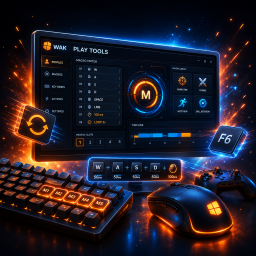
Organise automation into collections and scripts, then compose each script from keyboard and mouse actions that can be edited and reused whenever you need them.
Assign keyboard or mouse triggers and let TriggerLoom listen in the background, so your scripts remain available while you work, play, or use another application.
Run a script once, repeat it a fixed number of times, or keep it running until you trigger it again.
Keep track of armed collections and active scripts through TriggerLoom's compact overlay without having to return to the main application.
A collection belongs to a target app and contains one or more scripts. Each script has a trigger, a run mode, and an ordered list of steps describing the keyboard and mouse input to send.
The usual setup is: create a collection, choose its target app, add a script, configure its trigger and steps, then enable the script and arm the collection.
Collections keep related scripts together and define the application those scripts are allowed to control.
A script describes what should happen, what starts it, and how long it should keep running.
Steps run from top to bottom. Reorder them to change the sequence and use delays when an application needs time between inputs.
The overlay gives you a small always-on-top control for the collection you want available outside the main TriggerLoom window.
The Automation tools view contains a few supporting actions for managing or creating collections outside the visual editor.
Most problems can be narrowed down by checking the armed collection, script state, trigger, and target app.